Tasks
To manage your assignments through the Tasks module, follow these detailed instructions:
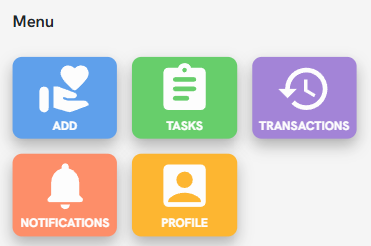
1. Viewing Tasks
Agency Assignments: Your agency can assign specific tasks that outline required products within a designated timeframe.

Search Filters: Upon entering the section, you will see tasks assigned to you for the selected Center and within the date range set in the top calendar.
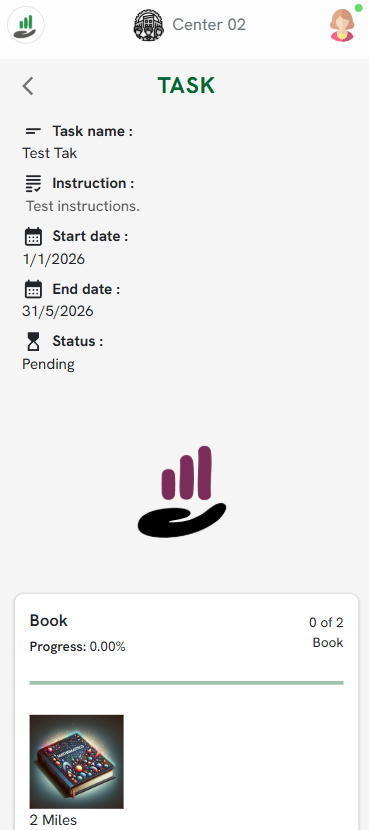
Task Details: Click on a task to view its specific instructions, start and end dates, and the associated center.
2. Progress and In-kind Registration
Progress Tracking: Within each task, you can monitor your current progress percentage and the number of products registered against the total goal (e.g., 0 of 2).
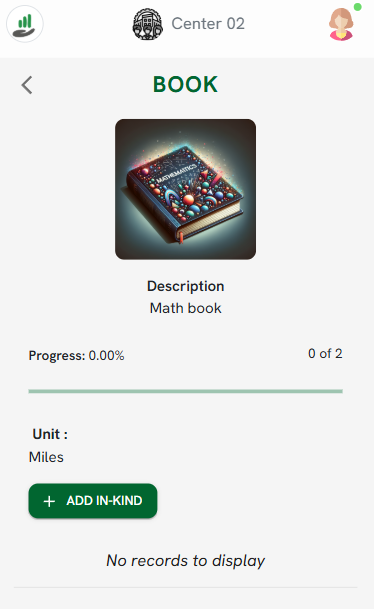
ADD IN-KIND Button: Pressing this button within a task starts a transaction with all required products pre-selected for you.
Automatic Linking: When a product belongs to an active task, you will see the task name displayed in the product section during transaction creation.
3. Important Rules and Restrictions
Date Range: If you change the Donation date to a day outside the task's valid range, the transaction will no longer count toward that specific task goal.
Additional Details: Agencies may configure specific Additional Details that must be completed for each task.
Goal Completion: Once you have reached the objective for a specific product in a task, any subsequent transactions for that product will not display the "Task" section and will not be included in the task count.