New Transaction
To create a new transaction, follow these detailed steps:
1. Product Selection
Start: Click the Add button in the main menu to begin.
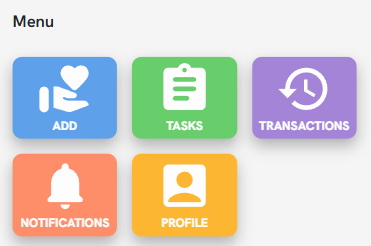
Navigation: The Add Products menu will open, where you can browse through different Categories (e.g., Donations) and specific Products.
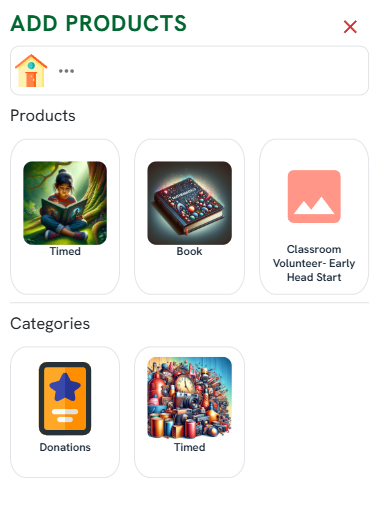
List Management: When you select a product, it will appear in your transaction list.
Adding Multiple Items: If you want to add more products to the same transaction, press the + button.
Sorting: New products are always added to the beginning of the list.
2. Product Configuration
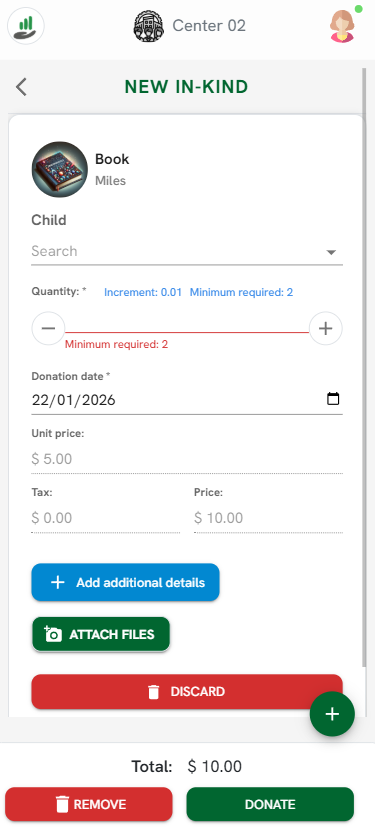
Child Selection: You must select the Child to whom the product will be assigned using the search dropdown.
Quantity and Date: Enter the desired Quantity. By default, the Donation date is set to today's date, but you can change it as needed.
Additional Details: Use the Add additional details button to include extra information. Some agencies have pre-configured options to select, or you can use a text input to write a custom detail.
3. Documentation and Controls
Attach Files: Use the Attach Files button to upload PNG or JPG images and PDF files. Note that some agencies may require this step.
Removing Items:
Discard: Use this button to remove a single product from the current list.
Remove: Use this button to delete the entire current transaction.
4. Finalization and Signature
Donate: Once the information is complete, click the Donate button.
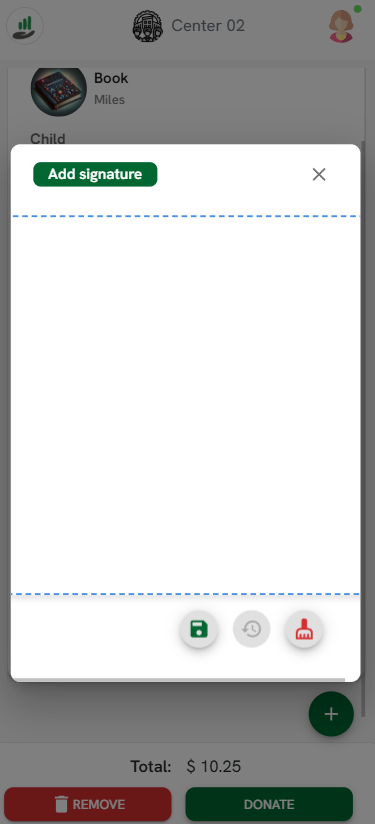
Digital Signature: A pop-up window labeled Add signature will open for you to sign.
Submission: Click the save icon (floppy disk) to officially send and process your transaction.
