Your Dashboard
1. Opening the dashboard
The dashboard is the first screen you see after logging in. It gives you a quick overview of key performance indicators and recent activity.
Steps
1View key performance indicators
At a glance, the dashboard displays your agency's key metrics and performance indicators.

2Review recent activity
Scroll down to see a summary of recent transactions and activity across your agency.
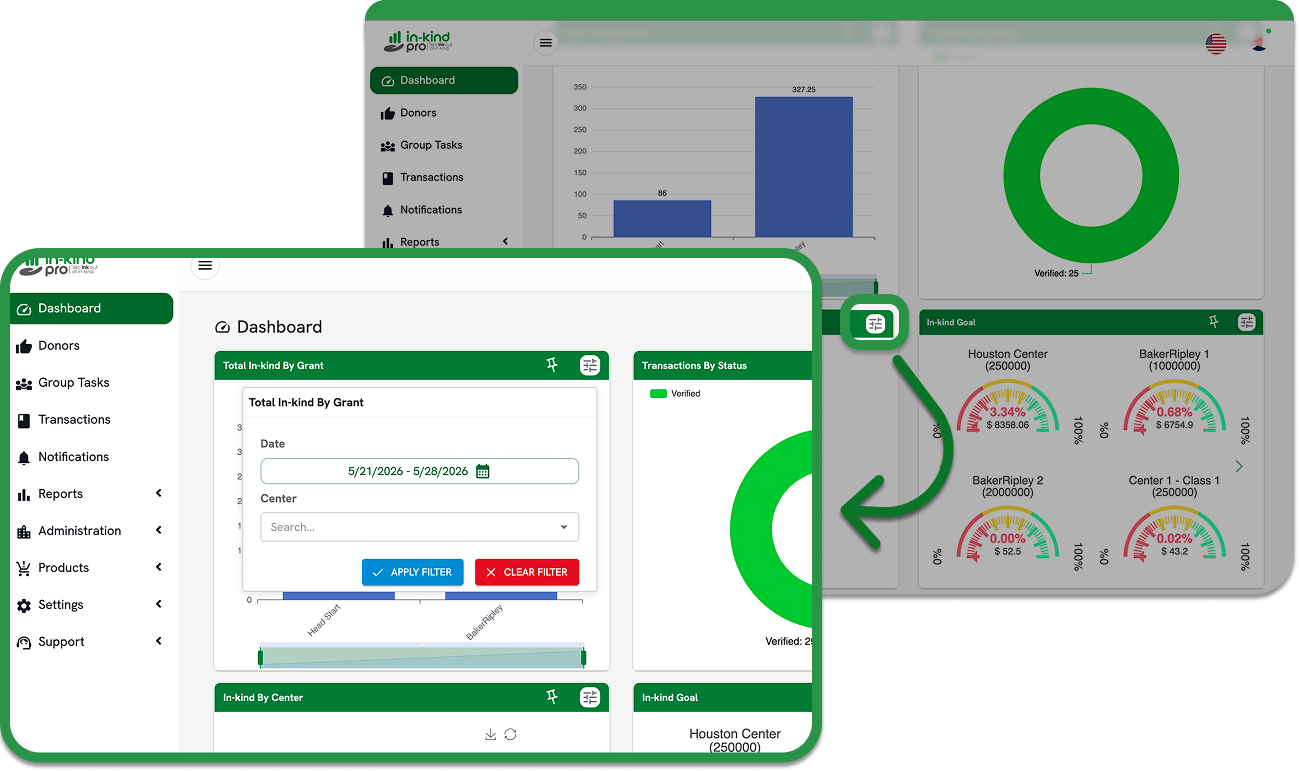
3Set filters
Use the filter options to narrow results by Date, Center, or Grant.
4
Apply filters
Click Apply Filters to update the dashboard with your selected criteria.
View key performance indicators
At a glance, the dashboard displays your agency's key metrics and performance indicators.
Review recent activity
Scroll down to see a summary of recent transactions and activity across your agency.
Set filters
Use the filter options to narrow results by Date, Center, or Grant.
Apply filters
Click Apply Filters to update the dashboard with your selected criteria.
2. The dashboard at a glance
Each chart is independent: it has its own filters, and changing one chart does not change the others.
Heads up: not every chart starts with the same date Total In-kind By Grant, Transactions by Status and In-kind goal start filtering by Transaction Date. In-kind By Center and In-kind By Case Worker start filtering by Occurrence Date. If two charts do not add up to the same total, check which date each one is using (see section 4.2).
Tools on every chart
3. Understanding each chart
3.1 Total In-kind By Grant

Total In-kind By Grant: one bar per grant, with its total on top.
How to read it: each bar is a grant of your agency, and the number on top is the in-kind collected for it within the filters. The amounts are added up line by line from the transaction details, the same way the transactions report does, and use the number of decimals set in your agency preferences.
Filters: Date (Transaction Date or Occurrence Date), Transaction status, Agency (administrators only) and Center.
3.2 Transactions by Status

Transactions by Status with the default filter: only verified transactions.
How to read it: each slice is a transaction status and its size is the number of transactions, not the dollar amount. Hover a slice to see the count and its percentage of the total.
The possible slices are Verified, Unverified, Pending, Unsigned, Rollback and Voided, each with its own color. The legend at the top lists the statuses on screen; click one in the legend to hide or show its slice.
Why the chart is all green By default this chart only includes Verified transactions, so it shows a single slice. To compare statuses, open the filters, add the statuses you want under Transaction status and click Apply Filter.
Filters: Date, Transaction status, Agency (administrators only), Center and Grant. When you filter by Occurrence Date, a transaction is counted once if any of its active lines falls within the range.
3.3 In-kind By Center

In-kind By Center: centers sorted by in-kind, highest at the bottom.
How to read it: one bar per center, sorted by the amount collected. Large amounts are shortened (for example, $5.8K); hover a bar to see the full total.
Filters: Date (starts on Occurrence Date), Transaction status, Agency (administrators only), Center and Grant.
3.4 In-kind By Case Worker

In-kind By Case Worker with the default option, Created by the case worker.
How to read it: one bar per case worker with the in-kind attributed to them. Hover a bar to see the total and the number of transactions behind it. This chart has its own options and caveats, explained in detail in section 5.
3.5 In-kind goal

In-kind goal: one gauge per center and grant, with the goal in parentheses.
How to read it: each gauge is a center under one grant. The title shows the center and, in parentheses, its goal. The large percentage is the progress toward that goal, and the amount below it is the in-kind collected. Colors go from red (far from the goal) to yellow and green (close to or at the goal).
Use the arrows on the sides to move between pages of gauges. Each page shows up to eight gauges, or four when the In-kind By Case Worker chart is not on your dashboard.
Filters: Date (starts on Transaction Date), Transaction status, Agency (administrators only), Center and Grant.
4. Using the filters
4.1 Apply filters to a chart
Click the filter icon on the chart you want to change.
Choose the date type and the date range.
Select the transaction statuses, centers, grants or (administrators) agencies to include. Leaving a field empty means “all”.
Click Apply Filter. Only that chart is updated.
To go back to the chart's default filters, open the panel and click Clear Filter.

The filter panel of Total In-kind By Grant.
Available filters
4.2 Transaction Date vs. Occurrence Date
Click the label above the date range (for example, Transaction Date ▾) to switch which date the range is applied to.

Choosing which date the range applies to.
Transaction Date: the day the transaction was registered in In-kind Pro.
Occurrence Date: the day each item or service was actually provided, entered on every line of the transaction.
Example: a transaction registered on March 2 has two lines: one that occurred on February 25 ($40) and one on March 3 ($60).
Use Occurrence Date to match the period in which the in-kind was provided (for example, for a monthly grant report). Use Transaction Date to see the activity registered in the system during a period.
4.3 Keeping your filters (pin)
Click the pin icon on a chart to keep its current filters. Pinned filters are saved to your account, so they are applied again the next time you open the dashboard, from any device. Click the pin again to stop keeping them.
5. In-kind By Case Worker in depth
This chart answers the question “how much in-kind is each case worker bringing in?”. Because a transaction can be registered by one person and include children worked by others, the chart lets you choose how the in-kind is attributed.
5.1 Who appears in the chart
Every case worker of the agency (and of the selected centers) is listed, even if they have no in-kind. A bar of $0 means they have nothing within the filters.
Only active case workers are listed by default. Use Case worker status to show inactive ones, or All, so the in-kind of case workers who were deactivated is not lost.
Case workers are sorted from the highest to the lowest total. Up to 100 case workers are shown; use the zoom slider on the right to scroll through them.
5.2 The filter panel

The filter panel of In-kind By Case Worker.
5.3 Created by the case worker vs. From their assigned children
Use Created by the case worker to measure who is registering in-kind. Use From their assigned children to measure the in-kind received by the children each case worker is responsible for.
5.4 Children with more than one case worker (double counting)
A child can be assigned to more than one case worker for the same donor. With From their assigned children, every one of those case workers is credited with the full in-kind of that child. This is intentional: each bar reads “what my children received”, and the in-kind of a shared child belongs to both. The consequence is that the sum of the bars can be higher than the actual in-kind.
Example: Laura registers one transaction for the Smith family with two lines:
Emma: $100. Emma is assigned to Laura and Mark.
Leo: $40. Leo is assigned to Mark only.
The real in-kind of the transaction is $140.
Both case workers also count it as one transaction in the tooltip, so the number of transactions can also add up to more than the real number.
When the chart is showing From their assigned children, an info icon appears next to its title as a reminder. Hover it to read the warning:

The warning shown next to the title with From their assigned children.
Do not add up the bars to get the agency's in-kind With From their assigned children, use the bars to compare case workers, not to get a total. For the real total, use Created by the case worker, In-kind By Center or the transactions report with the same filters. The case workers of a child are matched per donor: if the same child is with two donors, each donor's case workers only receive the lines of that donor's transactions.
5.5 Reading the tooltip

Hovering a bar shows the total and the number of transactions.
Total is the in-kind attributed to the case worker with the selected option. Transactions is how many different transactions contribute to that total. With From their assigned children, a transaction that only has one line of one of their children still counts as one transaction.
6. Why numbers may not match
If a chart does not match another chart or a report, check the following:
7. Frequently asked questions
I don't see the In-kind By Case Worker chart. Your user needs permission to view case workers (or to view, create or edit users). Ask your agency administrator.
A case worker shows $0. They have no in-kind within the current filters. With Created by the case worker, check whether the transactions were registered by someone else; with From their assigned children, check that the children on the transaction lines are assigned to them.
The Center filter says “Select agency”. Administrators must choose an agency first so its centers and grants can be loaded.
A center with a goal has no gauge. It has no in-kind within the filters of the In-kind goal chart. Widen the date range or add statuses.
Can I export a chart? Yes. Click the download icon on the chart to save it as an image. For detailed data, use the Reports section.