Home
Home View Guide
This is a quick guide for navigating and using the Home View in the mobile application:
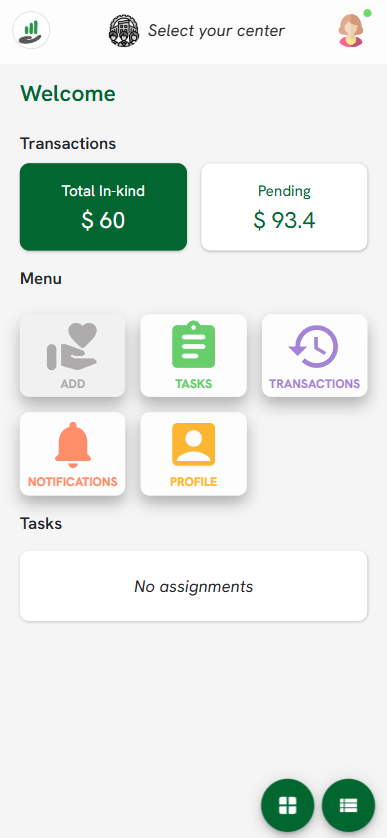
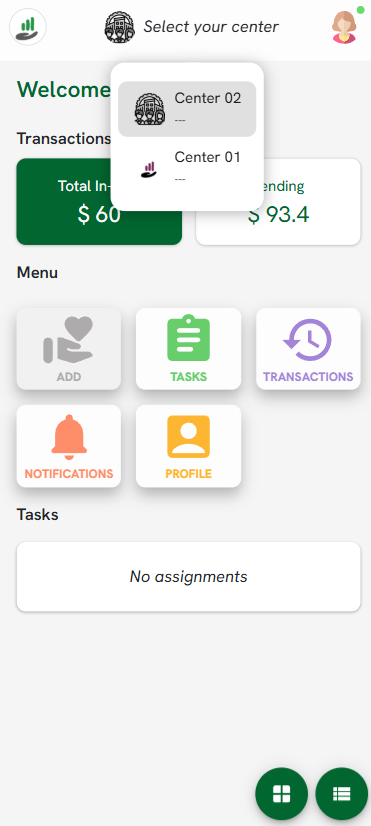
1. Center Selection (Mandatory First Step)
Upon logging in, the most critical action is selecting your work center.
Click the Select your center dropdown menu at the top of the screen.
Choose the appropriate location (e.g., Center 01 or Center 02) to load the specific data for that site
2. In-kind Transaction Summary
The top of the dashboard displays two key financial indicators:
Total In-kind (Green): Shows the total accumulated value of all verified transactions.
Pending (White): Displays the total value of transactions that have not yet been verified.
Quick Access: Clicking either of these boxes will automatically redirect you to the Transactions list, filtered by the selected status (verified or pending).
3. Navigation Menu
The main screen features direct access buttons to the core functions of the app:
Add: Create a new entry or record.
Tasks: Access and manage assigned tasks.
Transactions: View and manage the entry history.
Notifications: View system alerts and updates.
Profile: Edit your account information.
4. Task Management
The Tasks section at the bottom automatically displays the active task for the current date. It also provides a visual indicator of the current progress for that specific task.
5. View Customization
Two circular buttons are located in the bottom right corner:
Use these controls to toggle the Home view appearance between a grid layout and a list layout based on your preference.