E-Signature Process
E-signature process
How donors receive, review, and submit an e-signature for in-kind donation transactions.
Steps
Donor receives the signature request email
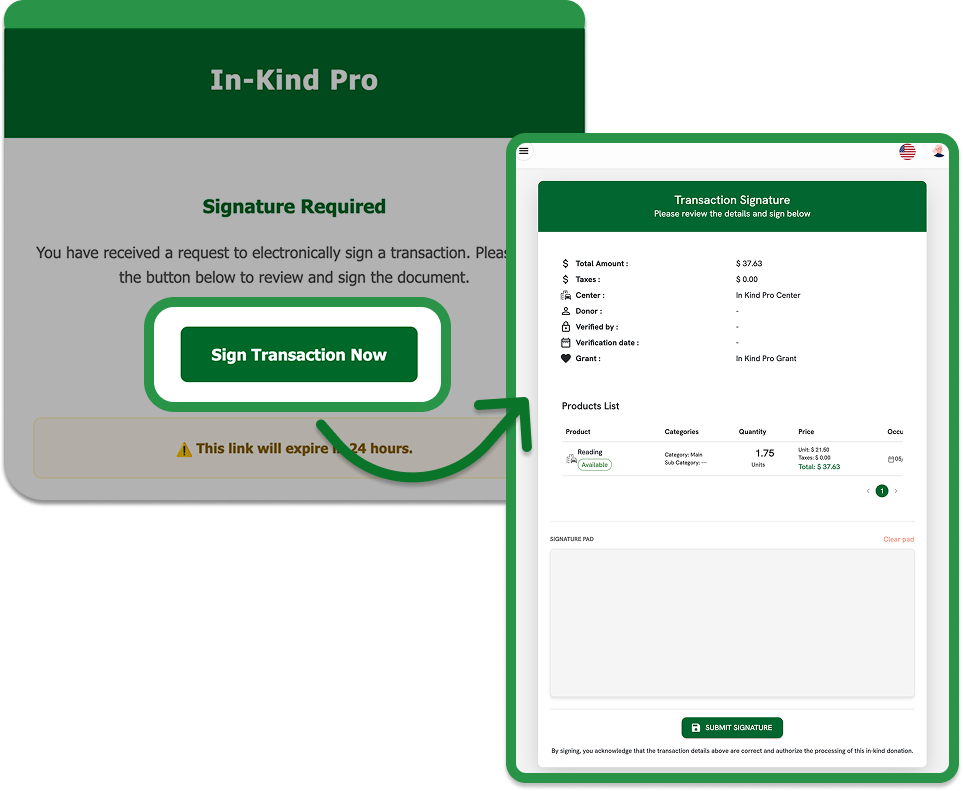
When an e-signature request is triggered, either from an In-App transaction with the feature enabled, or from any External transaction, an email is sent to the donor's address containing a Sign Transaction Now button.

Review transaction details and sign
Once donors receive that email, they will click the button that says "Sign Transaction Now." That opens a Transaction Signature page where the donor can review the full transaction details:
- Total amount and taxes
- Center and grant
- Complete list of donated products with quantities and prices
Below the summary, a Signature Pad is displayed. The donor draws their signature using a mouse or touchscreen, then taps Submit Signature to finalize.
Submission and confirmation
By submitting, the donor confirms that the transaction details are accurate and authorizes the processing of the in-kind donation. A confirmation email with the full transaction details is automatically sent to the donor.