In-App Transactions
In-app transactions
The standard transaction type for all agency administrators. Used to record in-kind donations for donors with a registered account in the In-Kind Pro donor app.
Before you begin
A configured Center, Grant, and Donor are all required before creating an in-app transaction.
Steps
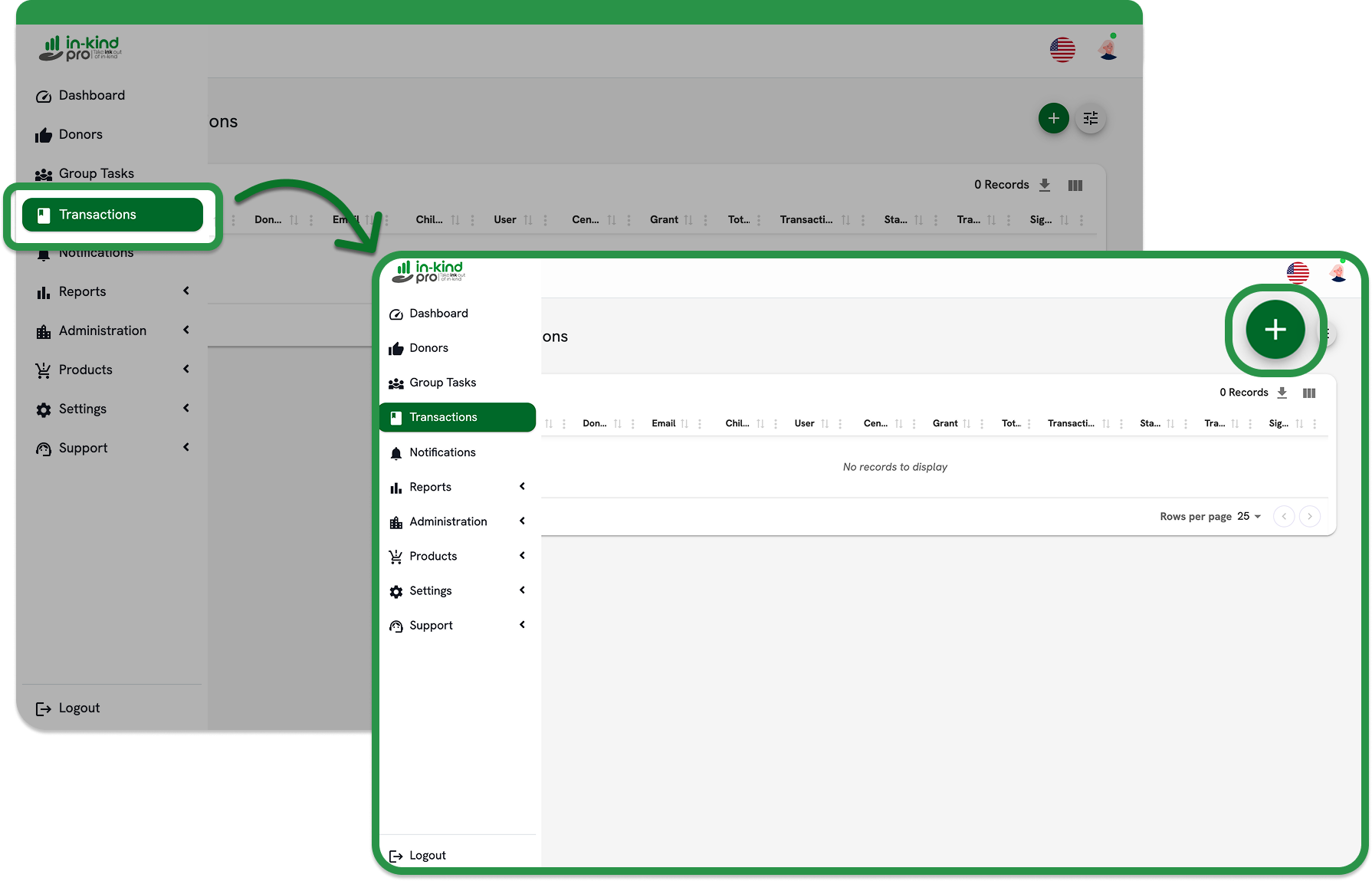
Open a new transaction
Go to Transactions, tap +, then select New Transaction → In-App.
Select Center, Grant, and Donor
Search and select all three required fields.
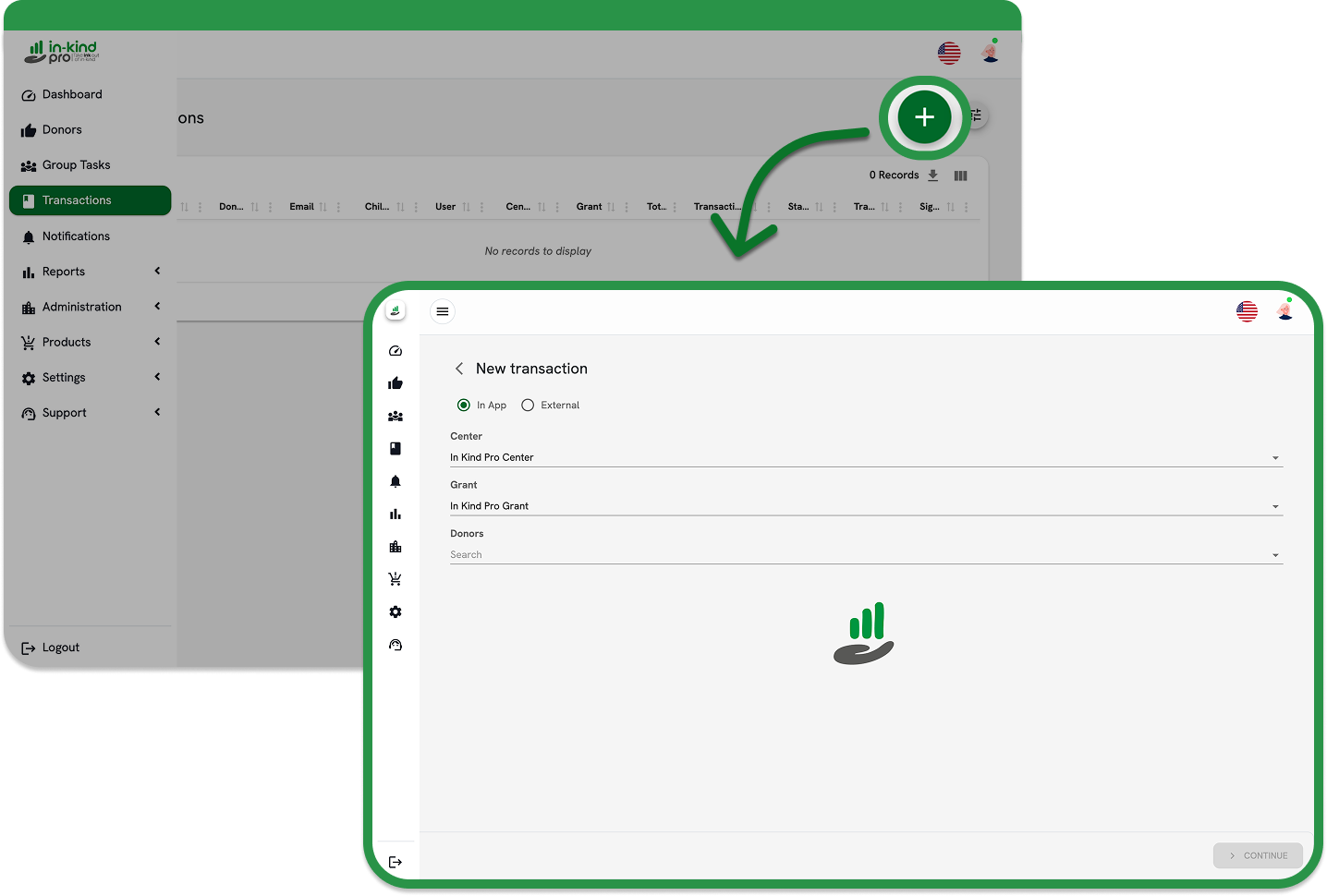
The donor search behavior depends on agency size:
If you have under 5,000 donors:
The full donor list will be shown. You can scroll or use the search bar to filter by name and find the correct donor.
If you have 5,000 or more donors:
The full donor list will not be show. Navigate to the search field and type at least 3 letters of the donor name, then tap Search. Click on the correct donor.
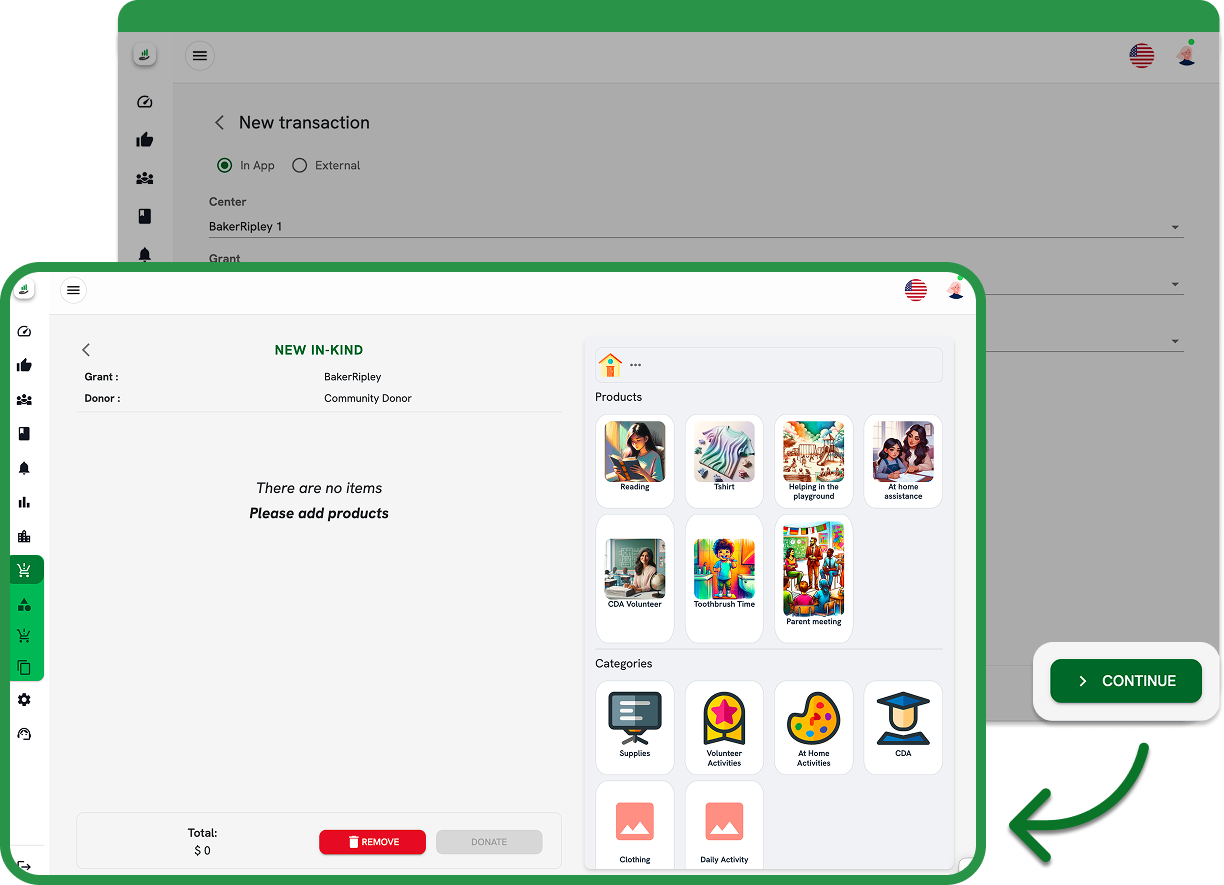
Add donated products
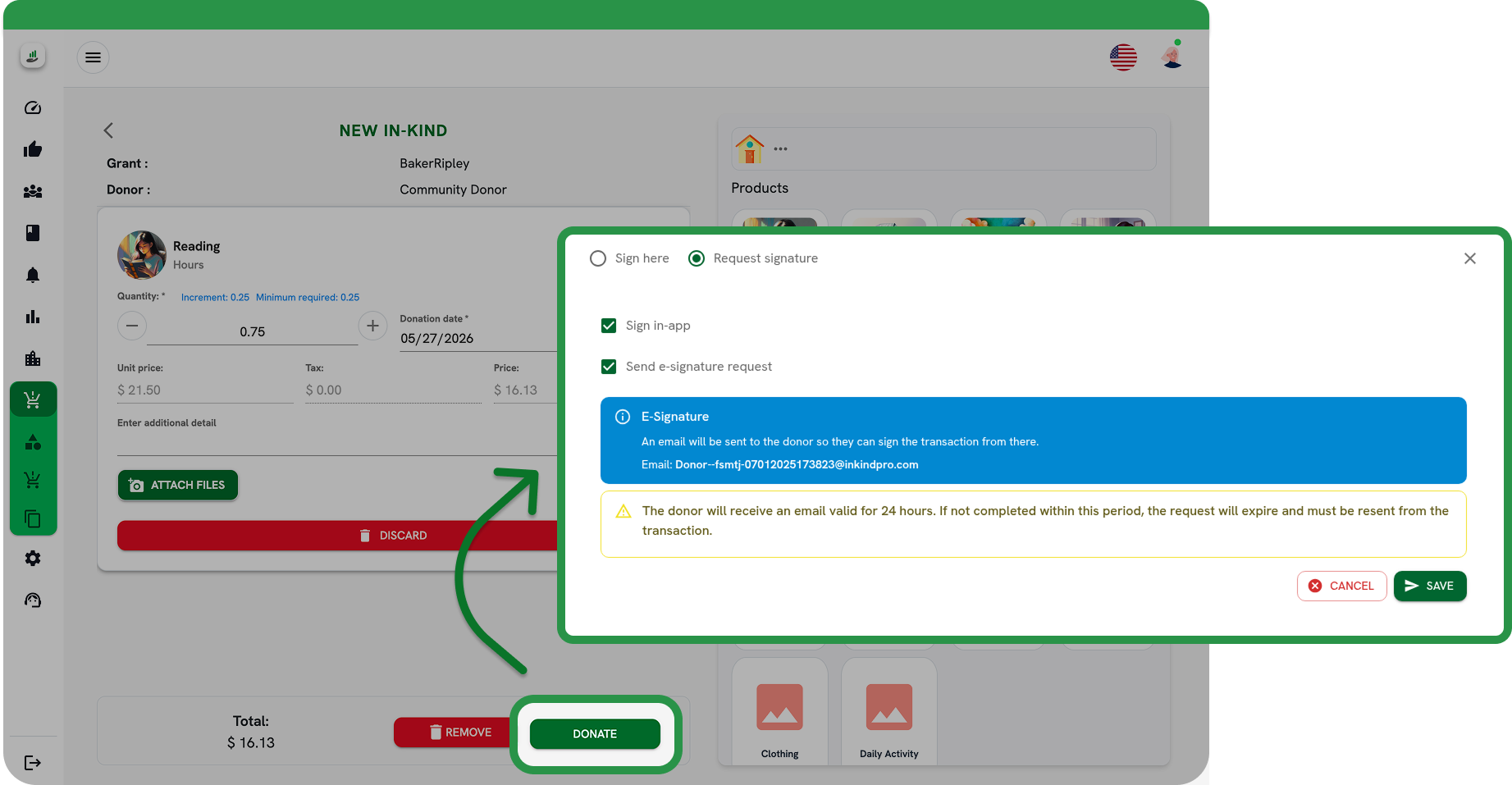
Tap Continue, then add products from the catalog in the right panel. Tap Donate when ready.
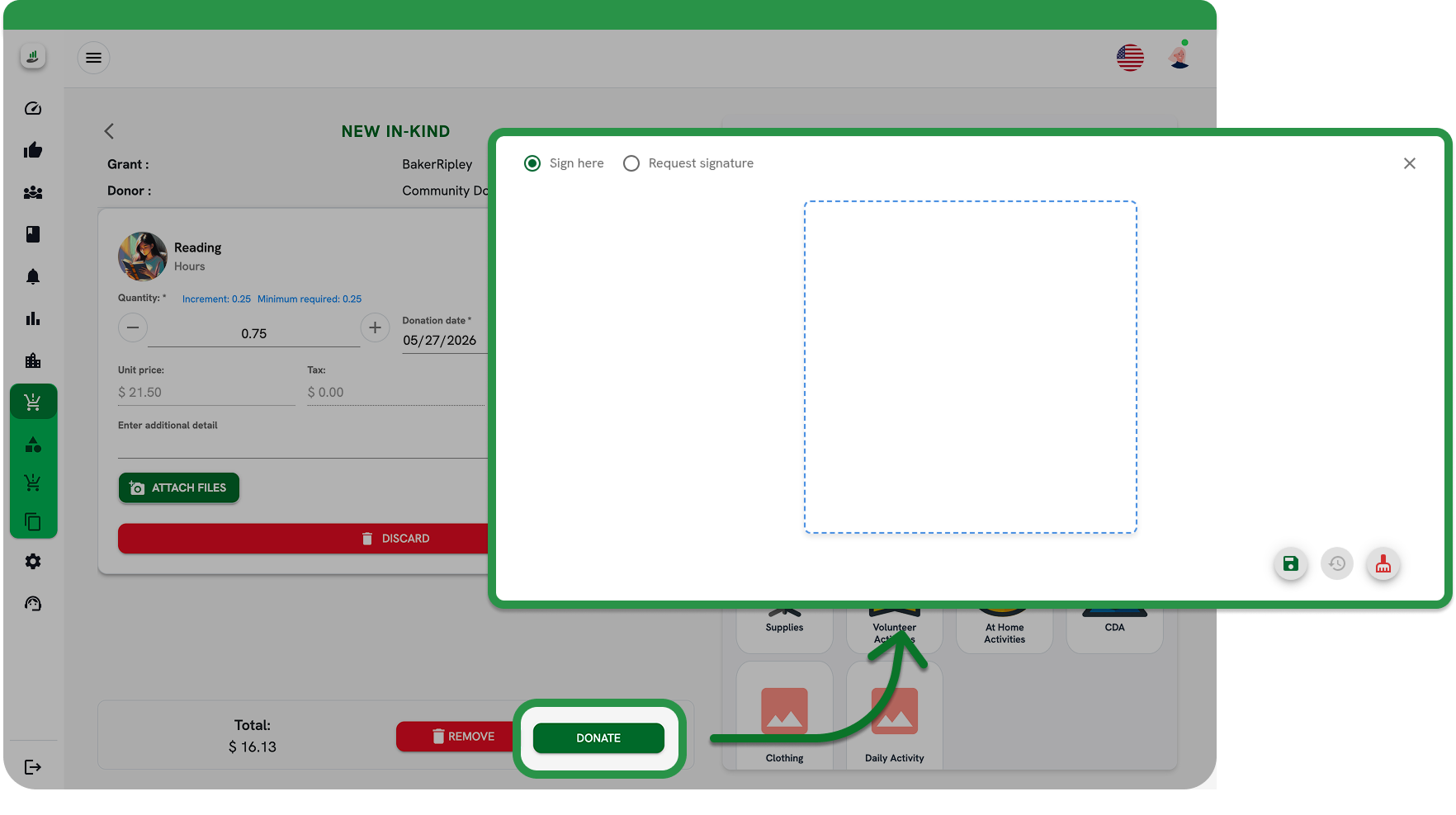
Choose a signing option
After tapping Donate, select how the transaction will be signed:
Sign here (in-person)
Administrator signs immediately on the current device. Use when the donor is physically present.
Request signature (remote)
Sign in-app formerly "Save unsigned"
Transaction appears in the donor's mobile app. The donor signs at their convenience. No email is sent.
Send e-signature request
A secure signing link is emailed to the donor's registered address. The link expires after 24 hours.
Both options can be selected together, whichever the donor completes first finalizes the signature and disables the other.
Notes
Send e-signature request is only available if the agency has the Request E-Signature feature enabled and the user has the Send E-Signature Request permission under Manage Transactions.
If both Sign in-app and Send e-signature request are selected, the first completed method finalizes the signature and automatically disables the other.